 ScriptureCaster
Features
Finding a verse
Three taps from book to verse, or type mat 3 16 and press Enter. All 66 books on one screen, targets big enough to hit without looking down.
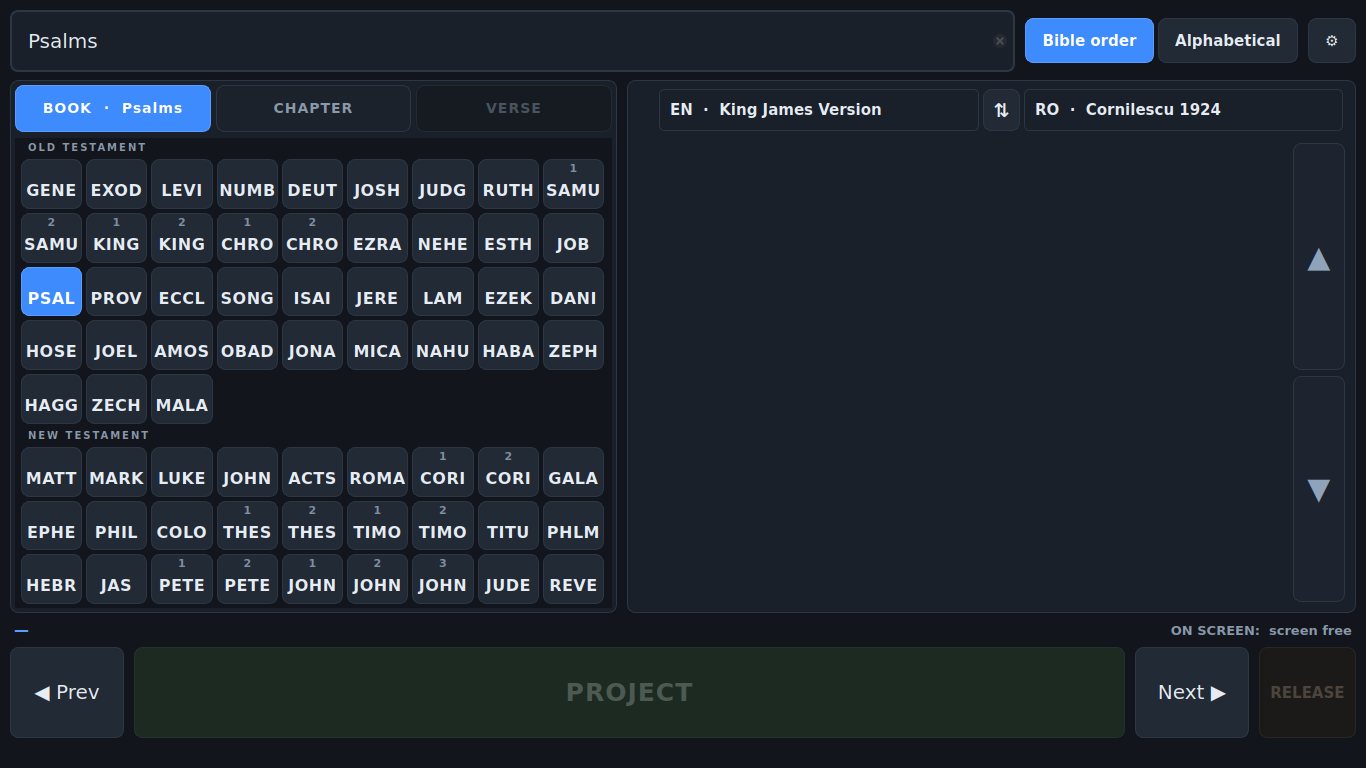
Nothing scrolls
A scrollbar is a mouse control. It needs a small, precise grab, it hides half the options, and dragging a list while you are watching a projector is an excellent way to land on the wrong verse. So every selection surface shows all of its options at once. When there are genuinely too many — 150 chapters, 176 verses — they page into bands rather than scroll.
The one exception is the passage panel on the right, and that is a reading surface, not a selection one.
Four letters, not three
Each book is a four-letter stem with its ordinal on a line above, so 1 Kings reads as a small 1 over KING rather than a cramped 1KIN. Four letters because a glance at ROMA or PHIL is a decision, while ROM and PHI are a small act of decoding — PHI could be Philippians or Philemon. A few stay at three where a fourth would make an odd word — JOB, JAS, LAM.
Switch the interface to Romanian and the stems switch with it: ÎMPĂ, PLÂN, FAPT.
One block, one step at a time
Three columns side by side spend most of their width on whichever step you are not using. Showing one stage at a time gives every stage the whole block — bigger targets, far fewer pages on long books, and the width the other columns were using goes to the passage instead.
At 1080p that means every one of the 150 chapters of Psalms, and every one of the 176 verses of Psalm 119, fits a single page with no paging at all.
The tabs across the top double as breadcrumbs — BOOK · Romans, CHAPTER · 8, VERSE · 28 — so you never have to leave a step to see where you are, and going back to a previous step never changes what is selected.
Or just type it
The search box takes shorthand. Press Enter and it projects — there is no separate “go” step.
mat 3 16      ps 23        1 cor 13 4
ioan3 16      mt 3,22      matei 3.22
It accepts full names in either language, the standard abbreviations, the four-letter codes, the older three-letter codes, and Roman numerals for the numbered books. If what you type is not a reference at all, it searches the text of the verses instead — useful when you know the words but not the address.
Every keyboard shortcut
The ones that matter during a service:
| Key | Does |
|---|---|
| Enter | Project what is selected — takes the projector screen |
| Esc | Give the screen back. The panic key: if a verse is up it comes off, whatever else Escape might have done |
| ↓ / ↑ | Next / previous verse — and re-projects if something is live |
| PgDn / PgUp | Next / previous chapter |
| Ctrl+B | Same as Esc — habit from other projection software |
And the rest:
| Key | Does |
|---|---|
| Ctrl+L | Jump to the search box and select what is in it |
| F1 | Settings |
| F2 | The Bible library |
| F5 | Re-detect the projector screens |
Small things that matter at the back of a room
- The mouse wheel works over any number grid — one notch is one page, or one verse where the whole book already fits.
- Double-tapping a verse in the passage projects it. The number pads deliberately do not do this, so a stray second tap while choosing can never reach the projector.
- The selected verse never changes size when you pick it — it used to grow, which reflowed the passage and cut long verses in half.
- On a smaller screen the passage panel gives up space before the buttons do. The targets never shrink.